
What I built this week (WIBTW): a google sheet based site. The week prior I had started creating something using google workspace/drive since we use Gemini at work. Basically, can I harness a google form to fill out a google sheet and then read that sheet with static html as a dashboard. BUT, I didn’t factor in weird permission stuff. Instead, and this is all in Gemini, I learned I can make code within the google sheet.
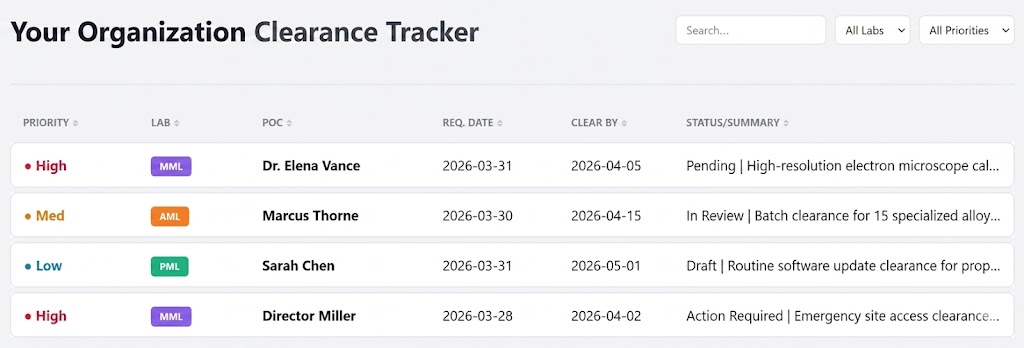
This is what you end up with, btw, this is all completely ficticious.
Full Setup & Handoff Guide
Part 0: The Foundation (Initial Setup)
This section is for the person “owning” the tracker. Follow these steps to build the database and the dashboard application.
1. Create the Master Sheet
- Create a File: Create a new Google Sheet in your Google Drive named
Blah_Database. - Set Headers: In the first row (A1 to J1), type these exact headers:
ID | Priority | Lab | POC | Email | Phone | Req_Date | Clear_By | Status | Description - Add Test Data: Add one “Test” row of data in Row 2 so the dashboard has something to load.
- Update Permissions: Click Share (top right). Change “General Access” to “Your institution”. Set the role to Editor for yourself and Viewer for anyone who only needs to see the dashboard.
2. Create the Script Backend
- Open Apps Script: Inside your new Google Sheet, go to Extensions > Apps Script.
- Add Code: You will see a file named
Code.gs. Delete all existing code and paste this exactly:
function doGet() {
  return HtmlService.createTemplateFromFile('Index')
      .evaluate()
      .setTitle('Your Organization Clearance Tracker')
      .setXFrameOptionsMode(HtmlService.XFrameOptionsMode.ALLOWALL);
}

function getData() {
  var sheet = SpreadsheetApp.getActiveSpreadsheet().getSheets()[0];
  return sheet.getDataRange().getDisplayValues();
}
3. Create the Dashboard Frontend
- Create HTML File: In the Apps Script editor, click the plus (+) icon next to “Files” and select HTML. Name the file exactly
Index(it will becomeIndex.html). - Add Code: Delete all existing code in the new
Index.htmlfile and paste this exactly:
<!DOCTYPE html>
<html lang="en">
<head>
    <meta charset="UTF-8">
    <title>Clearance Request Dashboard</title>
    <script src="[https://cdnjs.cloudflare.com/ajax/libs/tablesort/5.2.1/tablesort.min.js](https://cdnjs.cloudflare.com/ajax/libs/tablesort/5.2.1/tablesort.min.js)"></script>
    <script src="[https://cdnjs.cloudflare.com/ajax/libs/tablesort/5.2.1/sorts/tablesort.date.min.js](https://cdnjs.cloudflare.com/ajax/libs/tablesort/5.2.1/sorts/tablesort.date.min.js)"></script>
    <style>
        :root {
            --bg: #f3f4f6; --card-bg: #ffffff; --text: #1f2937;
            --mml-color: #8b5cf6; --pml-color: #10b981; --aml-color: #f97316;
            --border: #e5e7eb; --priority-high: #e11d48; --priority-med: #d97706; --priority-low: #0891b2;
        }
        body { font-family: sans-serif; background-color: var(--bg); color: var(--text); padding: 20px; display: flex; justify-content: center; }
        .dashboard-container { width: 100%; max-width: 1200px; }
        .header { display: flex; justify-content: space-between; align-items: center; margin-bottom: 20px; padding-bottom: 20px; border-bottom: 1px solid var(--border); }
        .controls { display: flex; gap: 10px; }
        .search-input, .filter-select { padding: 8px 12px; border: 1px solid var(--border); border-radius: 6px; background-color: #fff; }
        .request-table { width: 100%; border-collapse: separate; border-spacing: 0 6px; table-layout: fixed; }
        th { text-align: left; padding: 10px 15px; font-size: 0.75rem; text-transform: uppercase; color: #6b7280; cursor: pointer; }
        th:after { content: ' ⬘'; opacity: 0.3; }
        .item-row { background: var(--card-bg); cursor: pointer; transition: background 0.2s; }
        .item-row:hover { background-color: #f9fafb; }
        .item-row td { padding: 15px; border-top: 1px solid var(--border); border-bottom: 1px solid var(--border); overflow: hidden; text-overflow: ellipsis; white-space: nowrap; }
        .item-row td:first-child { border-left: 1px solid var(--border); border-top-left-radius: 8px; border-bottom-left-radius: 8px; }
        .item-row td:last-child { border-right: 1px solid var(--border); border-top-right-radius: 8px; border-bottom-right-radius: 8px; }
        .prio { font-weight: bold; }
        .prio-high { color: var(--priority-high); } .prio-med { color: var(--priority-med); } .prio-low { color: var(--priority-low); }
        .badge { padding: 4px 10px; border-radius: 4px; font-size: 0.7rem; font-weight: bold; color: white; text-transform: uppercase; }
        .badge-mml { background-color: var(--mml-color); } .badge-pml { background-color: var(--pml-color); } .badge-aml { background-color: var(--aml-color); }
        .details-row { display: none; }
        .details-content { padding: 20px; background-color: #f9fafb; border: 1px solid var(--border); border-top: none; border-bottom-left-radius: 8px; border-bottom-right-radius: 8px; display: grid; grid-template-columns: 2fr 1fr; gap: 30px; font-size: 0.9rem; }
    </style>
</head>
<body>
<div class="dashboard-container">
    <div class="header">
        <h1>Your Organization Clearance Tracker</h1>
        <div class="controls">
            <input type="text" id="searchInput" class="search-input" placeholder="Search..." onkeyup="filterRequests()">
            <select id="labFilter" class="filter-select" onchange="filterRequests()"><option value="all">All Labs</option><option value="MML">MML</option><option value="PML">PML</option><option value="AML">AML</option></select>
            <select id="priorityFilter" class="filter-select" onchange="filterRequests()"><option value="all">All Priorities</option><option value="High">High</option><option value="Med">Med</option><option value="Low">Low</option></select>
        </div>
    </div>
    <table class="request-table" id="trackerTable">
        <thead><tr><th style="width:10%">Priority</th><th style="width:10%">Lab</th><th style="width:18%">POC</th><th style="width:12%">Req. Date</th><th style="width:12%">Clear By</th><th style="width:38%">Status/Summary</th></tr></thead>
        <tbody id="tableBody"><tr><td colspan="6" style="text-align:center; padding: 50px;">Fetching Your Organization Data...</td></tr></tbody>
    </table>
</div>
<script>
    google.script.run.withSuccessHandler(function(data) {
        const tbody = document.getElementById('tableBody'); tbody.innerHTML = '';
        data.slice(1).forEach((r, i) => {
            if(!r[0]) return;
            const [id, prio, lab, poc, email, phone, reqD, clearD, status, desc] = r;
            const row = document.createElement('tr'); row.className = 'item-row';
            row.setAttribute('data-lab', lab.trim()); row.setAttribute('data-priority', prio.trim());
            row.onclick = () => {
                const next = row.nextElementSibling;
                const isOpen = next.style.display === 'table-row';
                document.querySelectorAll('.details-row').forEach(dr => dr.style.display = 'none');
                next.style.display = isOpen ? 'none' : 'table-row';
            };
            row.innerHTML = `<td><span class="prio prio-${prio.toLowerCase().trim()}">● ${prio}</span></td>
                <td><span class="badge badge-${lab.toLowerCase().trim()}">${lab}</span></td>
                <td><strong>${poc}</strong></td><td>${reqD}</td><td>${clearD}</td>
                <td title="${status} | ${desc}">${status} | ${desc}</td>`;
            const details = document.createElement('tr'); details.className = 'details-row';
            details.innerHTML = `<td colspan="6"><div class="details-content">
                <div><strong>Full Description:</strong><br>${desc}</div>
                <div><strong>Contact:</strong> ${poc}<br>📧 ${email}<br>📞 ${phone}<br><br><strong>ID:</strong> ${id}</div>
                </div></td>`;
            tbody.appendChild(row); tbody.appendChild(details);
        });
        new Tablesort(document.getElementById('trackerTable'));
    }).getData();

    function filterRequests() {
        const s = document.getElementById('searchInput').value.toLowerCase();
        const l = document.getElementById('labFilter').value;
        const p = document.getElementById('priorityFilter').value;
        document.querySelectorAll('.item-row').forEach(row => {
            const mSearch = row.textContent.toLowerCase().includes(s);
            const mLab = (l === 'all' || row.getAttribute('data-lab') === l);
            const mPrio = (p === 'all' || row.getAttribute('data-priority') === p);
            row.style.display = (mSearch && mLab && mPrio) ? '' : 'none';
            if (row.style.display === 'none') row.nextElementSibling.style.display = 'none';
        });
    }
</script>
</body>
</html>
4. Deploy the App
- In the Apps Script editor, click Deploy > New Deployment.
- Select Web App.
- Set “Execute as” to Me.
- Set “Who has access” to Anyone within your organization.
- Click Deploy. Copy the Web App URL. This is the dashboard link you share with the team.
Part 1: Managing & Updating
Instructions for the daily workflow:
- Sharing: Email the Web App URL to colleagues. They only need to be logged into their Your Organization Google account to view it.
- Updating Code: If you ever change the HTML or CSS, you must click Deploy > Manage Deployments > Edit (pencil) > Version: New Version > Deploy. Otherwise, the URL will still show the old version.
- Data Entry: You can type directly into the Google Sheet, or use the AI Assistant below.
Part 2: AI Assistant Handoff
Paste this into a Gemini chat to have the AI act as your data entry clerk.
Role: Blah Data Coordinator. Database Access: Use the Google Drive tool to read the sheet:
[INSERT YOUR SHEET ID HERE].Protocol:
- Audit: Read the existing sheet. Note the last ID used (e.g., REQ-005) and current POC names.
- Process: I will provide text/emails.
- Deduplicate: Check the POC and Description against existing rows. If it’s a duplicate, skip it and alert me.
- No Hallucinations: If a field (like Phone) is missing from the text, leave it blank.
- Output: Provide a Markdown Table (not a code block) for me to copy.
- Columns:
ID | Priority | Lab | POC | Email | Phone | Req_Date | Clear_By | Status | Description- Priority: Use “High” if “Clear By” is < 7 days away, otherwise “Med.”
- IDs: Increment from the last existing ID (e.g., REQ-006).